


设置Cetus MKIII
Step 1:Install Z-axis Structure
When installing the Z-axis, first align the Z-axis mounting hole with the X-axis mounting hole, and then screw the 3 screws in turn. After the position is adjusted, tighten them in turn.
The Screw used is M6 Screw


Step2:Install Z-axis 【End Cover】
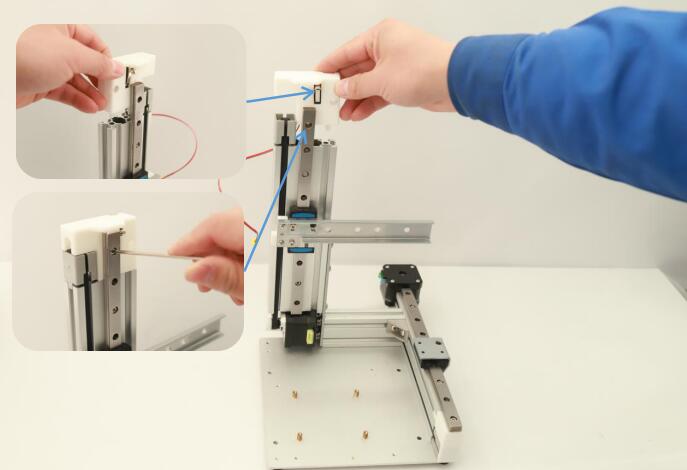
Install 【End Cover】 on the top of Z-axis and fix it with screw.
Note: 【End cap】is printed by ABS material. The part can be rebuilt by 3D printing If it is damaged.
Step3:Install Y-axis Structure
When installing the Y-axis, first align the Y-axis mounting hole with the Z-axis fixed plate mounting hole, and then screw the 3 screws in turn. After the position is adjusted, tighten them in turn.


Step4. Install FFC baffle
Install the FFC baffle and fix it to the Y-axis with the screws.

Step5, Install the Y-axis ground wire on the Y-axis rear intermediate screw


Step6. Install M3 Copper Stud
Screw four No.39 screws on the 3D printer baseplate. This is the part used to fix and stabilize the 3D printer board.
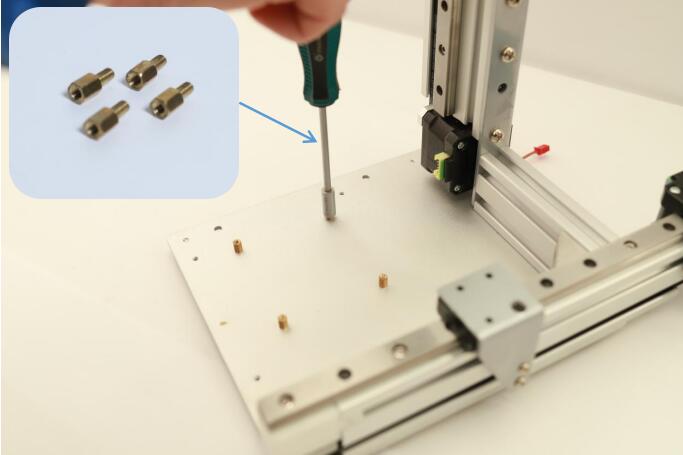
Install Baseplate copper nut
Step 7. Install the mainboard
Match the mainboard with four M3 Copper Studs and screw them with the screws to fix them on the baseplate.
Note: Be sure to follow the direction of [Motherboard] in the illustration.

matches M3 copper stud
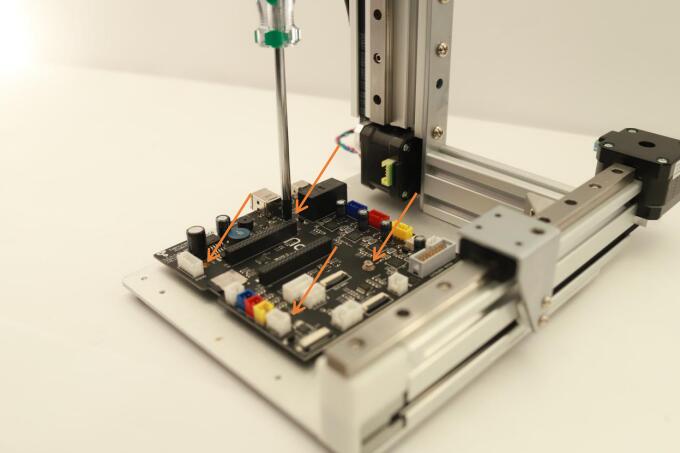
Fix the mainboard onto the M3 copper stud
Step 8 Match the CPU to the Motherboard label, carefully press into the CPU slot

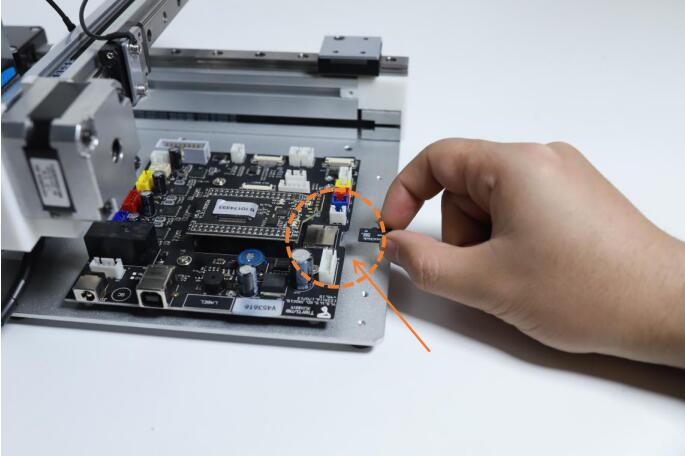
Step9 Install SD Card
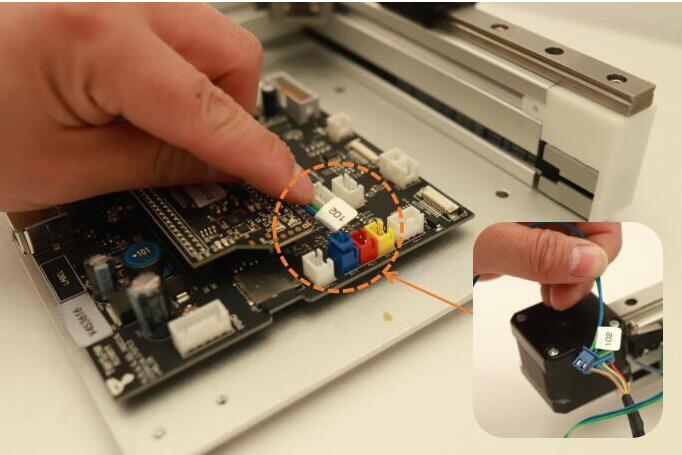
Step 10 Install X-axis wiring harness
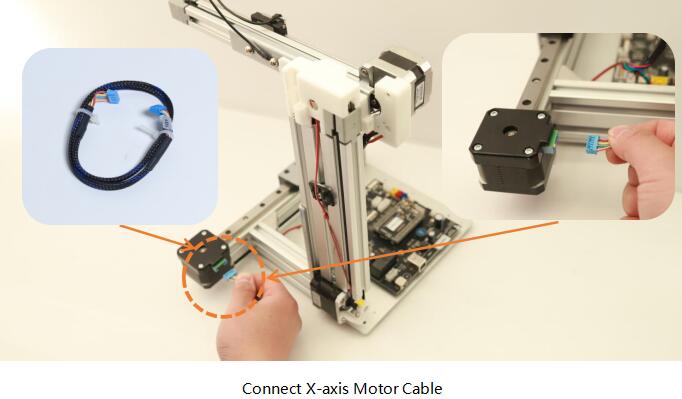
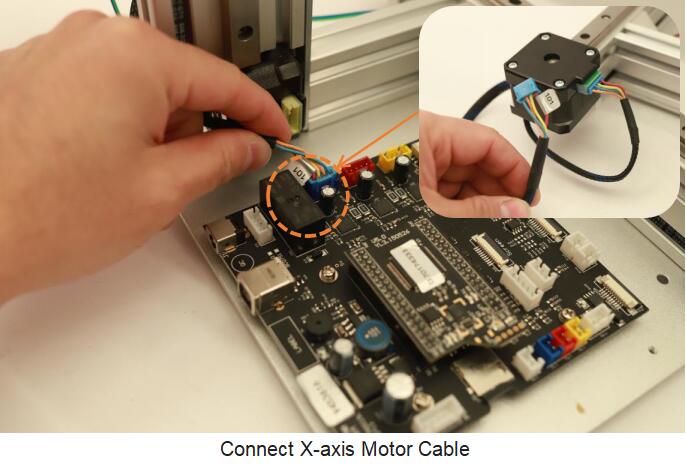
10.1 Install X-axis Motor Cable
Connect one end of the X-axis motor cable to the motor and the other end to the [Motherboard] blue motor port.
The X-axis motor cable controls the slider on the X-axis to move back and forth, thus driving the displacement of the build plate
10.2 Install X-axis Limit Switch
Fix the X-axis limit switch on the X-axis with No.45 screws, and install the other end in the blue slot of the mainboard.
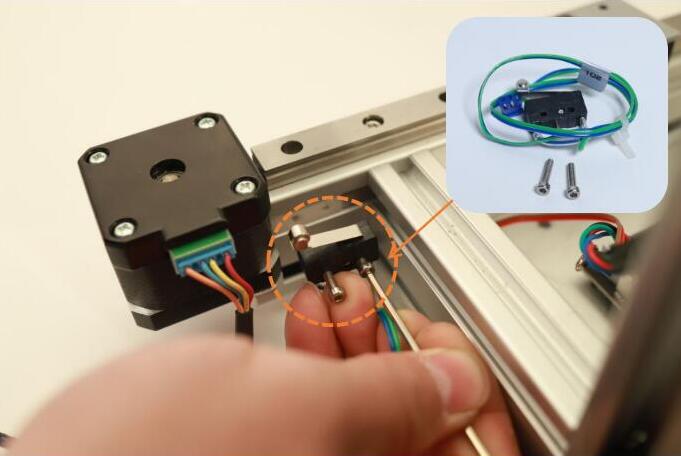
Mount X axis limit switch
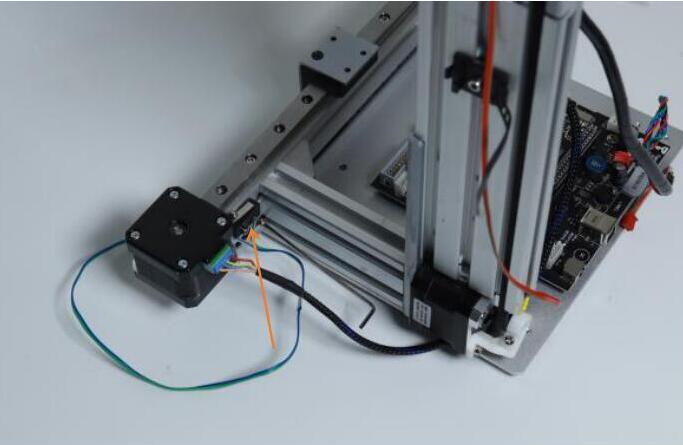
Overall installation of X axis limit switch
Connect X axis limit switch
10.3安装轴线束
Fix the cable in the groove on the profile with the profile pressing line


Fix X-axis Wiring Harness

Completed Connection of X-axis Wiring Harness
Comments
0 comments
Pleasesign into leave a comment.